
Schema markup helps search engines understand your content better, which can lead to enhanced search results with star ratings, images, prices, and other visual elements. This guide walks you through exactly how to implement schema markup on your WordPress site, whether you prefer using plugins or adding code manually.
What Is Schema Markup?
Schema markup is structured data code you add to your website that helps search engines interpret your content more accurately. Think of it as a translator between your content and search engines.
Instead of just reading text and guessing what it means, search engines can identify specific elements like product prices, review ratings, event dates, or recipe cooking times.
When implemented correctly, schema markup can help your pages appear with enhanced features in search results. These enhanced listings often stand out more than standard blue links, potentially attracting more clicks from searchers.
Understanding Schema vs. Rich Snippets
Schema markup is the structured data code you add to your site. Rich snippets are the enhanced search results — star ratings, prices, FAQ accordions — that search engines may display based on that markup.
You control the schema; Google decides whether to show the rich snippet. Schema increases the likelihood, but doesn’t guarantee it.
Common rich snippet types include:
- Star ratings (reviews/ratings displayed under the title)
- Price and availability (product pricing information)
- FAQ accordions (expandable question/answer sections)
- Recipe cards (cooking time, calories, ratings)
- Event details (date, location, ticket information)
- Breadcrumb trails (navigation path to the page)
Common Schema Markup Formats (JSON-LD, Microdata, RDFa)
Schema markup comes in three formats: JSON-LD, Microdata, and RDFa. JSON-LD places structured data in a standalone script block separate from your HTML — it’s Google’s recommended format and what most WordPress plugins use.
Microdata and RDFa both embed structured data directly into HTML attributes, making them harder to maintain. For WordPress users, JSON-LD is almost always the right choice.
Why Schema Markup Matters for WordPress Sites
Schema markup affects two main areas of your website’s performance: how search engines interpret your content and how your site appears in search results. Understanding these benefits helps you prioritize which pages need schema implementation first.
SEO Benefits of Schema Markup
Schema markup doesn’t directly improve your ranking; Google has stated this multiple times. However, it influences several factors that affect organic traffic:
- Improved content understanding: Search engines can accurately identify what your content is about, which helps them match it to relevant searches. This is particularly valuable for specialized content like recipes, products, courses, or local business information.
- Higher click-through rates: Pages with rich snippets typically see CTR increases of 20-40% compared to standard search results. When your listing includes star ratings, prices, or other visual elements, it occupies more screen space and attracts more attention.
- Better mobile visibility: Rich results are especially prominent on mobile devices, where screen space is limited. Enhanced listings stand out more and often appear above standard results.
- Eligibility for special SERP features: Certain types of structured data make your content eligible for features like the recipe carousel, FAQ accordion, job posting filters, or Google’s product shopping results.
- Voice search optimization: Structured data helps voice assistants like Google Assistant or Alexa extract and read specific information from your content in response to voice queries.
Schema markup is most valuable for content types where rich snippets commonly appear: products, recipes, articles, local businesses, events, FAQs, and how-to guides.
For general blog posts or informational pages, the impact may be less dramatic but still worth implementing.
How Schema Appears on Search Engine Results Pages
Rich results vary significantly based on the schema type and Google’s current display preferences. Understanding what’s possible helps set realistic expectations:
- Product schema can display with price, availability (in stock/out of stock), star ratings, number of reviews, and sometimes product images. This appears for both individual product pages and product category pages.
- Article schema typically shows the headline, publication date, author name, and featured image. On mobile, articles may also display in the “Top Stories” carousel if they meet Google News requirements.
- FAQ schema creates expandable accordions directly in search results, allowing users to see answers without clicking through to your site. Google limits this to two questions initially, with an option to expand for more.
- Recipe schema can appear as a rich card showing cooking time, calorie count, star ratings, and an image. Recipes also appear in Google’s recipe carousel on mobile devices.
- Local Business schema integrates with Google Business Profile data and may show hours, ratings, price range, and contact information directly in local search results.
- Review schema displays aggregate ratings (star count and number of reviews) under your listing. Google is strict about review markup; you can only use it for actual reviews on your site, not for self-ratings or testimonials.
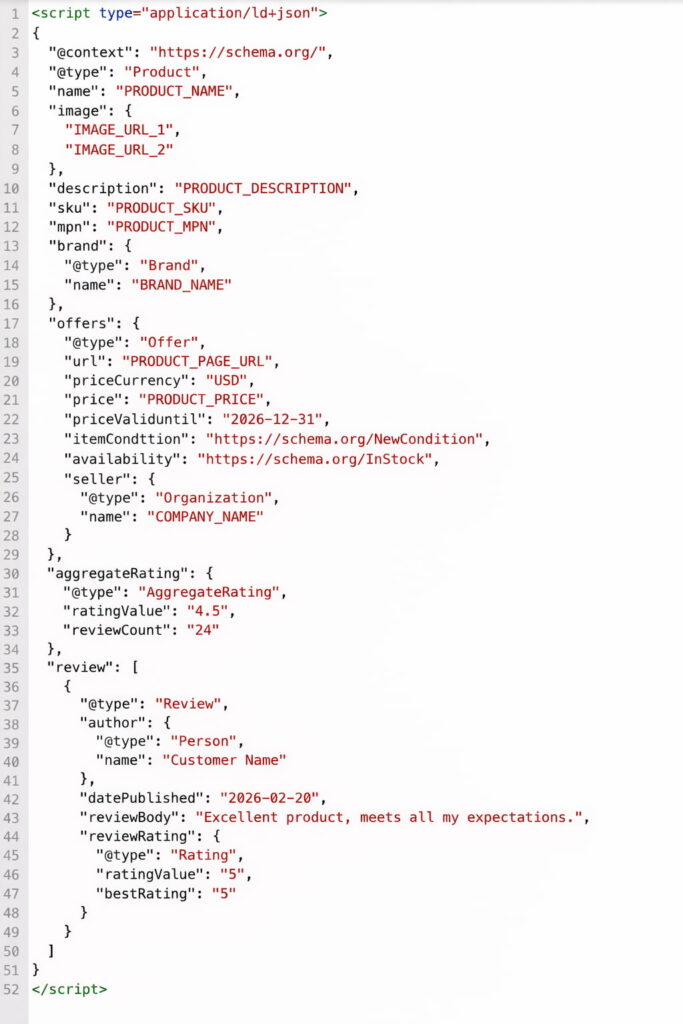
It’s important to note that implementing schema doesn’t guarantee rich results will appear. Google uses quality signals, user behavior data, and other factors to decide which pages deserve enhanced listings.
Sometimes schema validates perfectly, but rich snippets don’t appear for months. This is normal and not necessarily a problem with your implementation.
Types of Schema Markup You Can Use in WordPress
| Schema Type | Best for (WordPress pages) | What it can show in SERPs (typical rich result) | Where to implement first | Must-have fields (minimum) | Common mistakes |
| Article / BlogPosting | Blog posts, editorial content | Headline, author, date, image | Blog posts + pillar content | headline, author, datePublished, image, publisher | Missing image; wrong dates; duplicating schema via theme + plugin |
| Organization | Home / About / site-wide brand info | Knowledge signals, logo associations | Homepage (global) | name, logo, url, sameAs | Inconsistent brand name/logo across plugins |
| Person | Author pages, personal brand sites | Author understanding (sometimes) | Author templates | name, url, sameAs | Using Person when brand is the publisher (conflicting entities) |
| WebSite | Site-wide search box/site identity | Sitelinks search box (sometimes) | Homepage | name, url, potentialAction | Misconfigured site URL / search target |
| BreadcrumbList | Sites with categories + hierarchy | Breadcrumb trail in results | All indexable pages | itemListElement | Breadcrumbs don’t match visible navigation |
| Product | WooCommerce product pages | Price, availability, ratings (if eligible) | Top-selling products | name, image, offers (price + currency + availability) | Fake reviews, missing offers, and wrong price format |
| FAQPage | FAQ sections on pages | FAQ accordion (if shown) | High-intent pages (pricing, services) | mainEntity (Q/A pairs) | Marking up content that isn’t visible on-page |
| HowTo | Step-by-step tutorials | Steps (sometimes with images/time) | Tutorials with clear steps | name, step(s) | Steps not actually present; mixing with thin content |
| LocalBusiness | Businesses with physical presence | Hours, address, contact details (local results) | Location pages | name, address, telephone, openingHours | Using LocalBusiness for online-only brands |
| VideoObject | Pages with embedded/self-hosted videos | Video thumbnail, duration | Video landing pages | name, thumbnailUrl, uploadDate, contentUrl/embedUrl | No thumbnail; wrong video URL fields |
| Course | Course pages/education sites | Course info (limited) | Course catalog pages | name, description, provider | Using Course for blog posts “about a course.” |
| Event | Webinars, conferences, live events | Date/time/location | Event landing pages | name, startDate, location | Marking up past events as upcoming |
Schema.org defines over 800 types of structured data, but only a subset is relevant for most WordPress sites. Focus on types that match your actual content and have clear SERP benefits.
General Types (Article, BlogPosting, Organization, LocalBusiness, etc.)
- Article and Blog/Posting: are the most common schema types for content-focused WordPress sites. Use Article for news content, research, or editorial pieces. BlogPosting is specifically for blog posts. Both types support properties like headline, author, publish date, and featured image. Most SEO plugins add this automatically to your posts.
- Organization schema: provides information about your company, including name, logo, contact information, and social media profiles. This typically appears on your homepage or about page and helps Google associate your content with your brand in the Knowledge Graph.
- Person schema: works similarly to Organization but for individual authors, consultants, or personal brands. It’s useful if you’re building authority around a specific person rather than a company.
- WebPage and WebSite: provide basic information about your site structure. Website schema often includes the sitelinks search box markup, which can display a search field directly in Google results for branded searches.
- LocalBusiness: is critical for any business with a physical location. It includes address, phone number, hours, geographic coordinates, and service area. This schema type has many specialized subtypes (Restaurant, Store, Dentist, etc.) that provide additional relevant properties.
- BreadcrumbList: displays your site’s navigation path in search results, showing users where a page sits within your site hierarchy. This is particularly useful for e-commerce sites or content sites with deep category structures.
WordPress-Specific Types (Recipe, WooCommerce Product, FAQPage, etc.)
- Recipe schema: is essential for food blogs. It includes properties for ingredients, instructions, cooking time, nutrition information, and ratings. Google displays recipes prominently in mobile search results, making proper schema implementation crucial for food content.
- Product schema: (for WooCommerce stores) includes name, image, description, SKU, brand, price, currency, availability, and review ratings. For e-commerce sites, this is non-negotiable; product schema significantly impacts how your products appear in Google Shopping and product search results.
- HowTo schema: is designed for tutorial content and step-by-step guides. It can display individual steps in search results with images and estimated time. This is valuable for DIY content, technical tutorials, or any instructional material.
- VideoObject schema: helps Google understand video content on your pages. If you embed YouTube videos, schema can display video thumbnails, duration, and upload date in search results. For self-hosted videos, proper schema is essential for appearing in Google’s video search.
- Course schema: is useful for online learning platforms or educational content. It includes properties for course provider, description, and offering details (price, availability, etc.).
- Event schema: displays date, time, location, and ticket information for concerts, conferences, webinars, or any scheduled events. This can appear in Google’s event rich results and Google Maps.
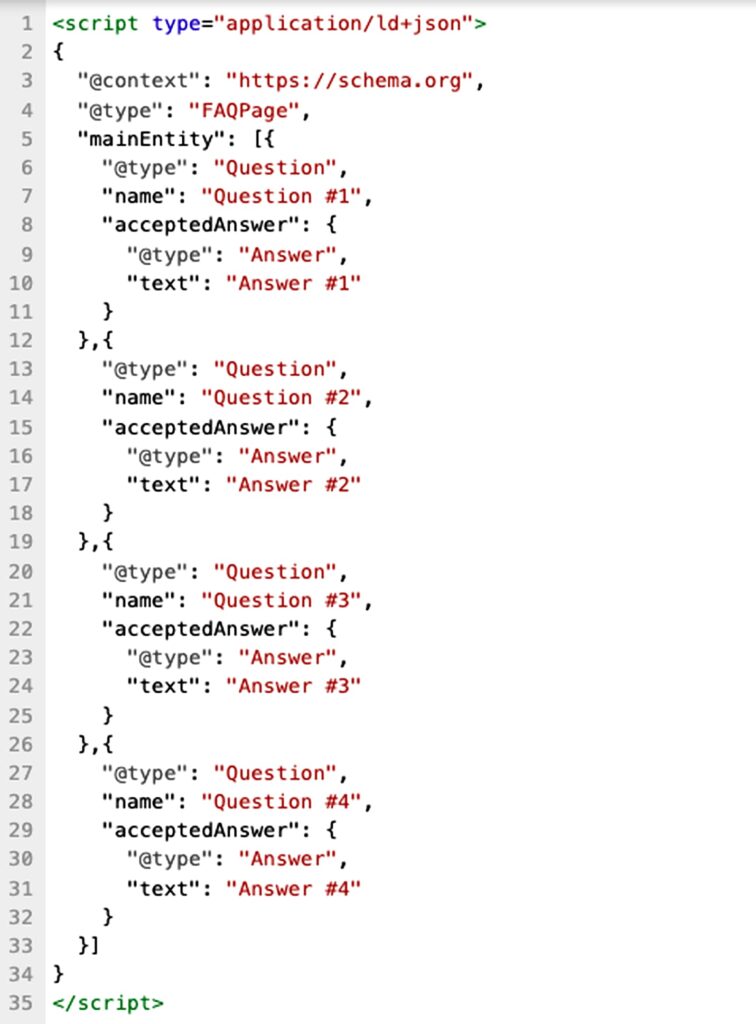
- FAQPage schema: creates those expandable question/answer sections in search results. This works well for support pages, product FAQs, or blog posts structured around common questions. Google has specific requirements: questions must be written as actual questions, and answers should be concise and direct.
Example:
Choose schema types based on your actual content, not wishful thinking. Don’t mark up a blog post as a Recipe just because you mentioned cooking. Google penalizes misused schema, and it won’t help your rankings anyway.
How to Add Schema Markup in WordPress
There are three main approaches to implementing schema in WordPress: using a dedicated schema plugin, leveraging built-in schema features in SEO plugins, or adding code manually. Each method has different complexity levels and maintenance requirements.
Method 1: Using a Dedicated WordPress Schema Plugin
- Schemafy supports 16 schema types with a visual Smart Builder that requires no coding. Create schemas through visual forms, use the AI Generator to auto-detect and build the right schema from a URL, or write JSON-LD manually with dynamic variables.
- Includes a Rich Snippets Manager, meta tags, and Open Graph and Twitter Cards support. Compatible with WooCommerce, Yoast, Rank Math, and Gutenberg.
- Free plan available, with paid tiers unlocking AI generation and advanced features.
- WP Schema: (by WP Schema Plugin) offers a free version with basic Article and Organization schema, plus a premium version ($49-$149) with advanced types like Recipe, Product, and Local Business.
- The interface uses custom fields where you fill in schema properties directly in the post editor.
- All In One Schema Rich Snippets: is a free plugin that covers common schema types through custom post types. You create “schema posts” with specific fields for each type (Recipe, Product, Event, etc.).
- It’s straightforward but less flexible than premium alternatives—you can’t automatically apply schema to existing posts without manually creating schema entries.
Pros of dedicated schema plugins:
- Comprehensive schema type coverage beyond what SEO plugins offer
- Visual interfaces that don’t require coding knowledge
- Automatic application to post types and categories
- Better handling of complex schema relationships (e.g., nested structures)
Cons of dedicated schema plugins:
- Additional cost for premium features ($50-150/year)
- Another plugin to maintain and update
- Potential conflicts if your SEO plugin also adds schema
- Learning curve for complex configurations
Implementation steps:
- Install and activate your chosen schema plugin
- Configure global schema (Organization or Person) in the plugin settings
- Set up schema templates for your main content types (Articles, Products, etc.)
- Map custom fields or post properties to schema properties
- Test a few pages to ensure schema appears correctly
- Monitor for errors in Google Search Console
Method 2: Using an SEO Plugin with Built-in Schema Options
Modern SEO plugins include schema functionality as part of their feature set. This approach is simpler if you’re already using one of these plugins for general SEO work, though schema options may be more limited than dedicated plugins.
- Rank Math: includes a solid schema module with 15+ types available in the free version. You configure schema directly in the post editor, choosing from predefined types or building custom ones.
- It automatically adds Article schema to posts and Organization schema to your homepage, and supports schema templates to apply structured data based on categories or tags.
- Yoast SEO (premium version, $99/year) includes schema functionality through its structured data blocks. The free version adds basic Article and Organization schema, but advanced types require a premium.
- Yoast uses a “Schema Graph” approach, connecting different schema types to show relationships (e.g., an Article written by a Person, published by an Organization).
- SEOPress (free and pro versions, $49/year for pro) includes schema configuration for Article, LocalBusiness, and other common types.
- The pro version adds schema breadcrumbs and automatic integration with WooCommerce Product schema. Configuration happens through SEOPress metaboxes in the post editor.
Pros of SEO plugins with schema:
- Consolidated SEO management in one plugin
- No additional plugin required if you’re already using it for SEO
- Automatic schema for common scenarios (posts, pages, homepage)
- Regular updates aligned with Google’s requirements
Cons of SEO plugins with schema:
- Limited schema types compared to dedicated plugins
- Less flexibility for complex structured data
- Premium features are often required for an advanced schema
- The interface can be cluttered with non-schema options
Implementation steps:
- Ensure your SEO plugin is updated to the latest version
- Navigate to the schema settings (usually under SEO settings or a dedicated Schema tab)
- Configure site-wide schema, like Organization details and logo
- Edit individual posts to add specific schema types (Recipe, HowTo, FAQ, etc.)
- For WooCommerce, enable Product schema in plugin settings
- Test pages using Google’s Rich Results Test
Method 3: Adding Schema Markup Manually (Code Snippets)
Manual implementation gives you complete control over schema markup but requires basic coding knowledge and ongoing maintenance. This method works best for developers, sites with specific schema requirements not covered by plugins, or situations where you want to minimize plugin usage.
You’ll add JSON-LD code to your WordPress theme or use a code snippets plugin to inject structured data without modifying theme files directly.
Example: Basic Article Schema
<script type="application/ld+json">

{

  "@context": "https://schema.org",

  "@type": "Article",

  "headline": "How to Add Schema in WordPress",

  "author": {

    "@type": "Person",

    "name": "Your Name"

  },

  "datePublished": "2025-10-28",

  "dateModified": "2025-10-28",

  "image": "https://yoursite.com/featured-image.jpg",

  "publisher": {

    "@type": "Organization",

    "name": "Your Site Name",

    "logo": {

      "@type": "ImageObject",

      "url": "https://yoursite.com/logo.png"

    }

  },

  "description": "A comprehensive guide to implementing schema markup on WordPress sites."

}

</script>
You can add this code to your theme’s header.php (inside the <head> section) or footer.php (before the closing </body> tag).
Using Code Snippets Plugins:
Instead of editing theme files, use a plugin like Code Snippets or WPCode to add your schema functions. This prevents your code from being lost when you update your theme.
Pros of manual implementation:
- Complete control over schema structure and properties
- No additional plugins required (except optionally Code Snippets)
- Can implement specialized schema types not available in plugins
- Deeper understanding of how structured data works
Cons of manual implementation:
- Requires PHP and JSON knowledge
- Manual updates when schema.org specifications change
- Higher risk of syntax errors breaking schema
- More time-consuming for large sites with varied content types
- Maintenance burden when changing themes or site structure
When to use manual implementation:
- You’re building a custom theme and want a built-in schema
- You need specific schema properties not available in plugins
- You’re implementing less common schema types
- You want to minimize plugin dependencies
- You have development resources to maintain custom code
How to Test and Validate Your Schema Markup
Testing schema markup is not optional; it’s essential. An invalid schema can lead to Google Search Console errors, and even a valid schema might not perform as expected. Always test before deploying schema to your entire site.
Using Google’s Rich Results Test
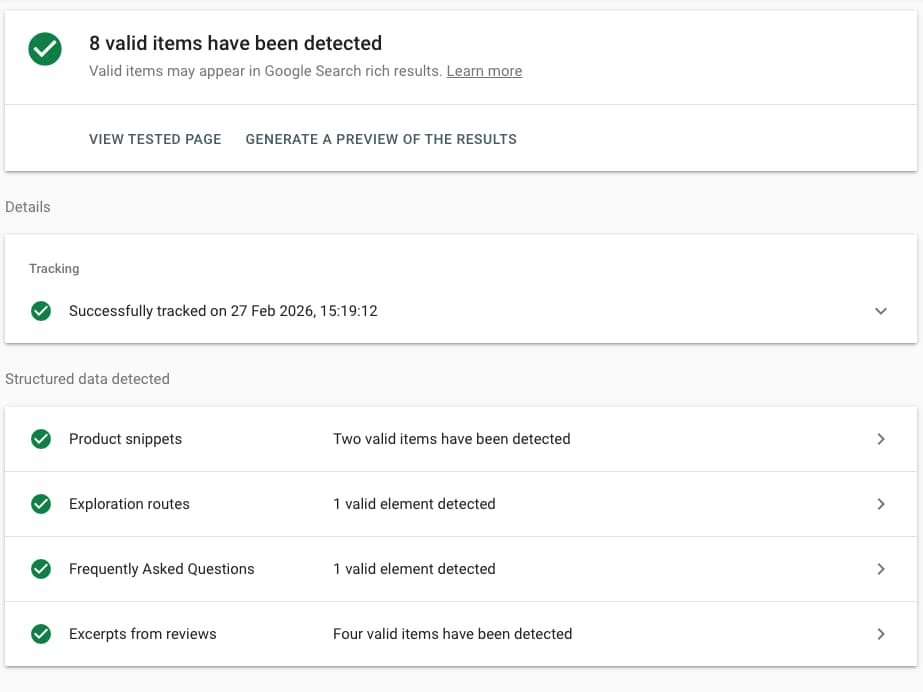
Google’s Rich Results Test is the primary tool for checking whether your schema markup qualifies for enhanced search results. It shows exactly what Google sees and flags errors that would prevent rich snippets from appearing.
How to use the Rich Results Test:
- Go to Google Rich Results Test
- Enter your page URL in the search box, or paste your schema code directly
- Click “Test URL” and wait for results (usually 10-30 seconds)
- Review the results panel showing detected schema types
- Check for errors (red icons) and warnings (yellow icons)
Understanding the results:
- “Rich results can be displayed” means your schema is valid and eligible for enhanced search results. This doesn’t guarantee rich results will appear in actual search results, but your implementation is technically correct.
- “Rich results cannot be displayed” indicates critical errors that prevent Google from processing your schema. Common issues include missing required properties, incorrect data formats, or invalid schema types.
Warnings suggest improvements, but don’t prevent rich results. For example, “Recommended property missing” indicates you’re missing optional properties that could enhance your rich results.
Common errors and fixes:
- “Missing field ‘image’”: Add an image property with a valid URL. Many schema types require images.
- “Invalid date format”: Use ISO 8601 format (YYYY-MM-DD or YYYY-MM-DDTHH:MM: SS)
- “Invalid price format”: Price must be a number without currency symbols (use the “priceCurrency” property for currency)
- “The property X is not recognized by Google”: Not an error, Google just doesn’t use that particular property
Testing live vs. code:
Testing live URLs is more reliable because it shows exactly what Google sees, including dynamically generated schema. Testing code snippets is useful during development, but it may miss issues with how your plugin or theme generates the actual markup.
Using Schema Markup Validation Tools
Beyond Google’s tool, additional validators help ensure your schema follows Schema.org specifications and catch issues Google’s test might miss.
- Schema.org Validator (validator.schema.org)
- Search Google (Search Google.com)
Best Practices for Implementing Schema in WordPress
Schema markup is not a “set it and forget it” task. Following these practices ensures your structured data remains effective and compliant with Google’s guidelines as your site evolves.
Ensuring Correct Type & Properties
Using the wrong schema type or omitting required properties is the most common schema mistake. Always match schema to your actual content, don’t mark up a blog post as a Product, use Review schema for testimonials, or add Event schema to a post that merely mentions an event. Google is strict about this, and a mismatched schema can do more harm than no schema at all.
Include all required properties. Each schema type has mandatory properties that must be present for rich results to appear. For example:
- Article requires: headline, image, datePublished, author
- Product requires: name, image, offers (with price and priceCurrency)
- Recipe requires: name, image, author, datePublished, description, prepTime, cookTime, recipeIngredient, recipeInstructions
- LocalBusiness requires: name, address, telephone
Check Schema.org documentation to understand which properties are required, recommended, or optional for each type you use, and always keep your markup accurate — Google penalizes misleading schema.
Watch for duplicate schema from conflicting themes or plugins by checking your page source. When possible, use specific subtypes like “NewsArticle” over “Article” or “Restaurant” over “LocalBusiness” to unlock additional relevant properties.
Maintaining Schema When the Site Changes
Schema markup can break when you update themes, switch plugins, or restructure your content. Build maintenance into your workflow to catch issues early.
Audit schema after major site changes:
- Theme updates or theme changes
- Plugin updates (especially SEO or schema plugins)
- Site migrations or domain changes
- Structural changes to URLs or content types
- Adding new content types (e.g., launching a WooCommerce store)
Create a schema checklist for new content types: When you add new content to your site, ensure schema is implemented from the start:
- New blog post → Article schema configured?
- New product category → Product schema working?
- Adding a physical location → LocalBusiness schema complete?
- Launching a course → Course schema included?
Monitor Google Search Console regularly through the Enhancements report to catch schema errors early, and set up alerts for new issues. After updating your schema plugin or WordPress core, spot-check pages across different content types to ensure everything still validates.
It’s also worth documenting your schema setup, which plugins handle which types, any custom code, and key configuration choices — so troubleshooting and onboarding new team members stays straightforward.
Future-Proofing Your Structured Data Setup
Schema.org and Google’s rich results requirements change over time. New schema types emerge, requirements shift, and some rich result types get retired. Stay current without constantly overhauling your implementation.
Follow official sources for schema news:
- Google Search Central Blog for announcements about rich results
- Schema.org releases page for new types and property changes
- Your schema plugin’s changelog for updates and new features
Prioritize stable, well-supported schema types like Article, Product, and Organization over experimental ones that change frequently. If adding schema manually, use functions and variables instead of hardcoded values to make future updates easier.
And if keeping up with Google’s evolving requirements feels unsustainable, a maintained schema plugin that updates regularly is often the more practical long-term choice.
Don’t over-implement. You don’t need every possible schema type. Focus on types that:
- Match your actual content
- Have clear benefits (rich results or better understanding)
- You can maintain it accurately over time
Ten well-implemented schema types are more valuable than fifty poorly maintained ones.
FAQs
How much do WordPress schema plugins cost, and is there a free option that actually works?
Most premium plugins land in the $49–$199/yr range (solo site → agency tiers). Yes, free options can work if they cover your schema types and let you customize fields; just pair them with Search Console monitoring to catch gaps.
Why isn’t my schema showing up as rich snippets in Google even though it validates correctly?
Validation only checks syntax. Visibility depends on eligibility, page quality, searcher intent, and Google’s discretion. Fix common blockers: thin content, missing required/recommended fields, conflicting markup, slow pages, or insufficient E-E-A-T signals.
Which schema markup plugin is best for WooCommerce stores with 500+ products?
Choose one that auto-maps product data, supports variations & GTIN/MPN/Brand, handles reviews/aggregate ratings, and offers bulk/CSV or programmatic controls. Priority: performance (no bloat), clean JSON-LD, and per-template overrides for scale.
Can I use multiple schema types on the same page (e.g., Article + Organization)?
Yes. Use multiple types as long as each is accurate and non-contradictory. Nest related entities (Organization, Author) and keep one primary “thing” (e.g., Product or Article) that matches the page’s main intent.
Conclusion
Schema markup improves how search engines understand your WordPress site’s content, increasing your chances of enhanced search results that attract more clicks. While implementation ranges from simple plugin configuration to custom code, the core principle remains the same: accurately describe your content in a format search engines can process.
Summary of Key Takeaways
- Start with a plugin unless you have specific custom needs. Rank Math free, Yoast SEO, or a dedicated schema plugin like Schema Pro covers 90% of use cases without requiring code. Manual implementation makes sense only for specialized requirements or if you’re building custom themes.
- Match schema types to your actual content. Use Article schema for articles, Product schema for products, Recipe schema for recipes. Don’t misuse schema types hoping to game rich results; Google penalizes this, and it doesn’t work anyway.
- Required properties are non-negotiable. Each schema type has mandatory fields that must be complete and accurate for rich results to appear. Missing a required property means your schema won’t generate enhanced listings, even if it validates.
- Validation is essential, but doesn’t guarantee rich results. Always test schema with Google’s Rich Results Test before deploying. Passing validation makes you eligible for rich snippets, but content quality and competition determine whether they actually appear.
- Monitor and maintain your schema over time. Schema can break when themes update, plugins change, or your site structure evolves. Regular audits through Google Search Console catch issues before they impact significant portions of your site.
Next Steps for Your WordPress Site
Pick one schema type relevant to your site and implement it today. If you publish articles, start with Article schema. If you run a WooCommerce store, configure Product schema. If you have a business location, implement LocalBusiness schema. Getting one type working correctly teaches you the process for adding others later.
After implementing schema, test it thoroughly with Google’s Rich Results Test and Schema.org’s validator. Fix any errors immediately, they won’t resolve themselves and will prevent rich results from appearing.
Leave a Reply